While the workable alternatives here will save the day, I’d still recommend getting a remote replacement.
Nothing quite compares to the ease of having a TV-specific remote at your disposal.
But if you’re on a tight budget and can’t buy it right now, or you’re waiting for your new remote to arrive, we’ve got ways to easily resolve your TV connection issue.
The Clever Fix:
Connect your TV to your Wi-Fi router using an ethernet cable. Then, switch the TV off and on again.
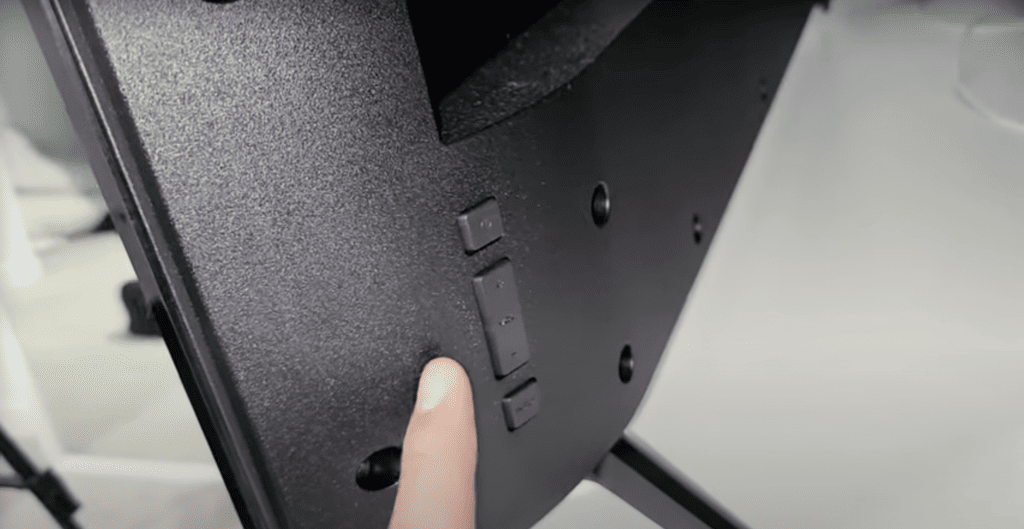
The design of Vizio TVs champions the width of the screen, and that’s why they have limited onboard buttons.
Some models even have just one button (the Power button)!
While this sleek design is uncluttered, it does make things tricky if the TV becomes full-on dependent on the remote.
So, you can’t use the physical buttons alone to connect the TV to Wi-Fi.
However, you will need them (the Power button, Volume buttons, and Input button) to launch the network setup process.
If you’re struggling to locate the buttons, give your TV another once-over.
They are usually tucked away on the back, blending in seamlessly.
The user manual for your TV will also guide you to their exact location.
The best remote alternative
The best remote alternative you can use for your TV is the Vizio Smartcast app. It can do all functions of a standard remote, like change volume, channel, etc.
If you don’t have the Vizio Smartcast app yet, download it from the Play Store (Android) or App Store (iOS).
However, take note that not all Vizio TV units are compatible with the Vizio Smartcast app.
If your TV doesn’t appear on the device list during set up, it likely isn’t compatible with the app.
Now, you might be asking if you can use it to connect your TV to your Wi-Fi.
The answer is no.
Here’s what you need to remember:
You can’t use the app to hook up your TV to Wi-Fi because your TV has to be on the network first before the app can find it. But once both your TV and phone are on the same network and synced up, you can definitely use the app as a substitute for your remote.
For ways on how to connect your TV without the remote, check the next section.
How to connect Vizio TV to Wi-Fi without remote
1. Use ethernet cable
This is probably the easiest and fastest way to get your TV connected to the network.
All you need to do is to plug an ethernet cable to your TV, connecting it to the Wi-Fi router.
It’s as simple as that!
As soon as the ethernet cable is connected, your TV will automatically connect to the Wi-Fi.
To navigate the TV, you can then use the Vizio remote app .
In fact, this can be your permanent setup because a wired connection is seen to be more reliable than Wi-Fi.
However, if your TV is too far from the Wi-Fi router to make this feasible, we can still get it connected using other methods.
2. Use USB keyboard
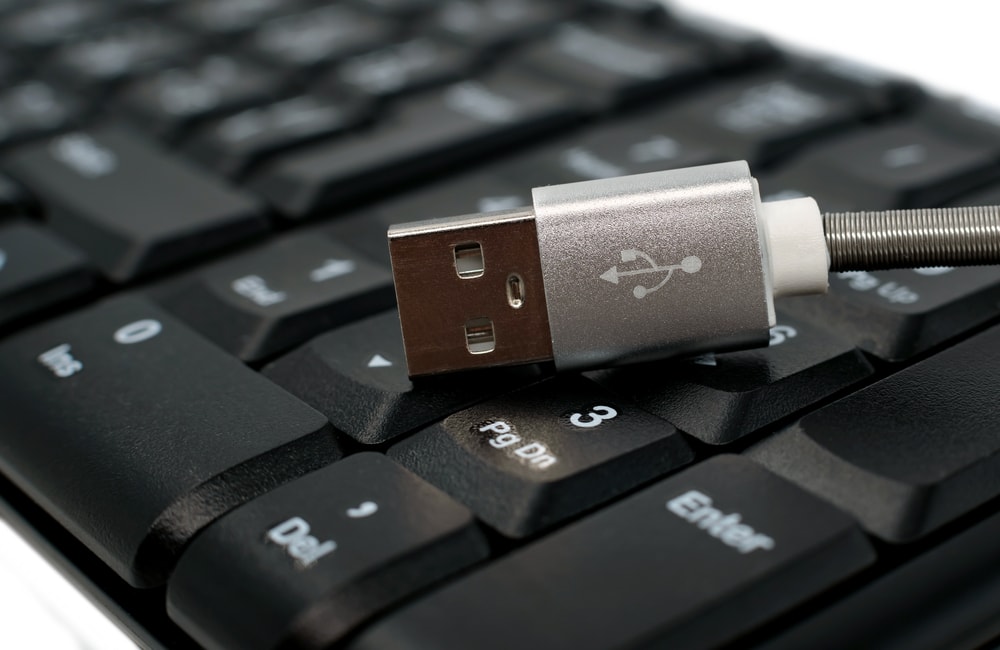
If you have a desktop computer at home, you can use its keyboard temporarily to set up the Wi-Fi.
This is probably the most accessible alternative you have.
However, to connect a keyboard, you must first perform a factory reset on the TV to initiate the setup process.
Remember, it’s a “factory reset.”
This means all your current configurations and data will be lost. You will need to reinstall the apps and tweak the settings again.
To perform a factory reset, follow these steps:
- Switch on the TV using the Power button.
- Hold down the Volume Down and Input buttons together for 5 seconds.
To connect your TV to the Wi-Fi using a keyboard, follow these steps:
- After the reset, wait for a prompt message to press the Input button.
- Press the Input button for 10 seconds.
- Plug your keyboard into the TV’s USB port.
- Follow the on-screen instructions to complete the setup.
Use the arrow keys to move between selection and the Enter key to make a selection. Input your network details using the keyboard.
Once you’ve successfully connected to the network, connect your TV to the Vizio Smartcast app so you can control your TV wirelessly from your comfy sofa.
3. Use a universal remote
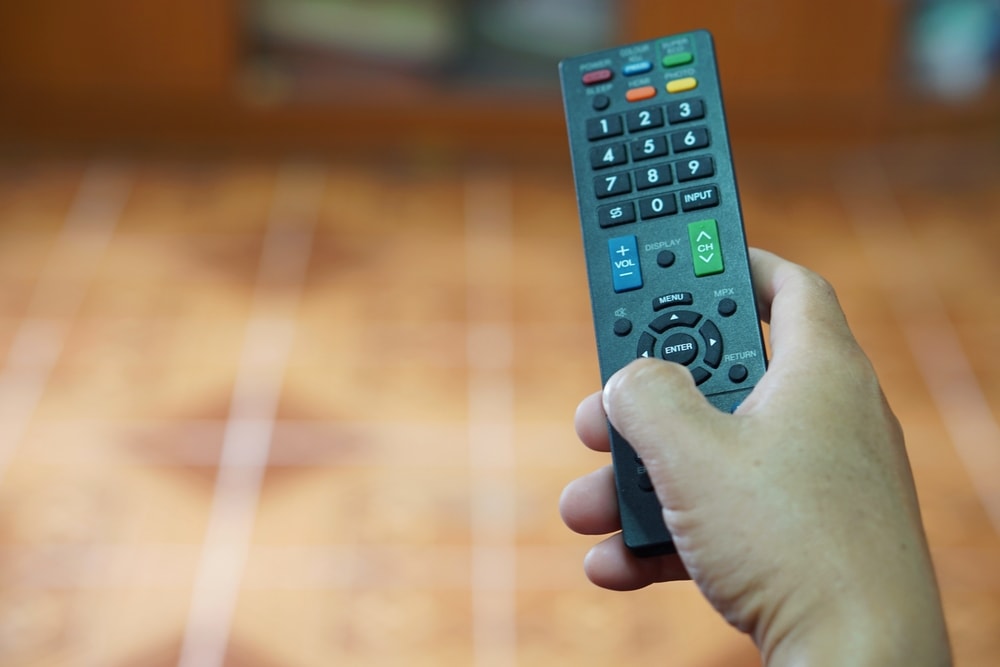
Ever heard of a universal remote?
It’s kind of a jack-of-all-trades when it comes to remotes—it might even replace your missing Vizio TV remote.
The cool thing? It can control multiple devices at the same time.
No more playing hot-potato with a bunch of remotes.
Have one lying around? Maybe it’s coupled with your set-top box or soundbar?
Well, you can use that little contraption to set up the Wi-Fi.
To set up your Wi-Fi using a universal remote, follow these steps:
- Turn on the TV using the Power button.
- Press the Setup button on your universal remote, and input the Vizio TV model code (try the code 5-5-6-1).
- Wait for the setup to complete.
- Using the universal remote, navigate to Menu > Network.
- Select your network and input the password.
This could totally be your new normal, especially if you’re using that remote on more than one device.
Would a USB mouse work?
You might be wondering, “If a keyboard works, wouldn’t a mouse too?”
Well, not really.
Plug a USB mouse into your TV and you won’t see a cursor or be able to control anything—it’s a bit of a bummer.
Sure, it’d be neat to explore your TV like a computer screen with a mouse, but it doesn’t look like that’s an option.
That being said, we’re not saying it’s completely off the table.
It didn’t work for me or some other folks, but you might want to give it a whirl.
It wouldn’t hurt to plug a mouse into that USB port.
If it works? Total game-changer.
Wrapping Up
If your TV remote is on the fritz or has mysteriously disappeared, the best fix is to get a new one.
There’s just nothing like having a remote that’s all about your TV.
If your budget’s a bit tight right now or you’re still waiting for your replacement to come in the mail, and your Vizio TV isn’t hooked up to Wi-Fi, an ethernet cable can be your best buddy.
It’ll connect your TV to Wi-Fi automatically—no typing necessary!
Once you’re connected, the Smartcast app can help you navigate your TV.
If you can’t do a wired connection, you’ve still got some cards to play – a keyboard or a universal remote.
A universal remote might be a good long-term solution, but chances are you’ll end up using it on all sorts of devices in different rooms.
You’ll always be better off with a dedicated TV remote.
Haven’t ordered a replacement yet?
You could check out the Vizio online shop. Or head to a brick-and-mortar store like Walmart to grab a Vizio remote or a universal one.
So, how’d it go?
Did you get your TV hooked up to Wi-Fi? What method did you go with?